Windows AI coding setup

Install AI coding tools without memorizing setup commands.

CodeReady helps you choose AI coding tools, checks your computer, shows the exact install commands, and guides you through account sign-in and first steps.

Early preview. Windows may show a SmartScreen warning because the installer is not code-signed yet.

What CodeReady is

A guided setup app for AI coding tools on Windows.

CodeReady helps with the first ten minutes before you can use an AI coding tool. It checks what is already installed, explains what is missing, shows every command before it runs, and gives you the next sign-in step after install.

It shows the commands You can review the exact install commands before CodeReady runs them.
It avoids extra setup Node.js is installed only when the selected tools need it.
It keeps accounts separate Sign-in happens through each tool's normal account flow. CodeReady does not store API keys.
Options

Choose the tools you want, then add visual helpers when you are ready.

AI coding tools are off by default. CodeReady lets you pick Claude Code, Codex, Gemini CLI, and optional beginner-friendly tools separately.

C

Claude Code

Install Claude's terminal coding assistant and sign in with your Claude account.
O

OpenAI Codex

Install Codex CLI, then sign in with ChatGPT to start a coding session.
G

Gemini CLI

Install Google's Gemini terminal tool and connect it with Google sign-in.
VS

VS Code

Open a project folder and view exactly which files and lines the AI changed.
GH

GitHub Desktop

Save checkpoints, compare work, and upload a project when you want to share it.
What it helps with

A setup flow for Claude Code, Codex, Gemini CLI, and useful visual tools.

CodeReady keeps setup understandable: choose tools first, review commands before install, then connect accounts and learn how to start.

Choose tools

Pick only the AI coding tools you want. Installed tools are shown as ready.

Review commands

See every install command before CodeReady runs it.

Start using them

Get account sign-in guidance and first commands after install.

How it works

From a fresh Windows PC to your first AI coding command.

1

Pick tools

Choose Claude Code, Codex, Gemini CLI, or any combination.
2

Check setup

CodeReady checks Windows Package Manager, Git, Node.js, npm, and installed tools.
3

Install safely

Review the install commands, then let CodeReady run them one step at a time.
4

Start using it

Follow the account sign-in guide and try the first command for each tool.
How it looks

See the main setup steps.

Pick the tools you want

CodeReady checks only the setup pieces needed for your selected tools.
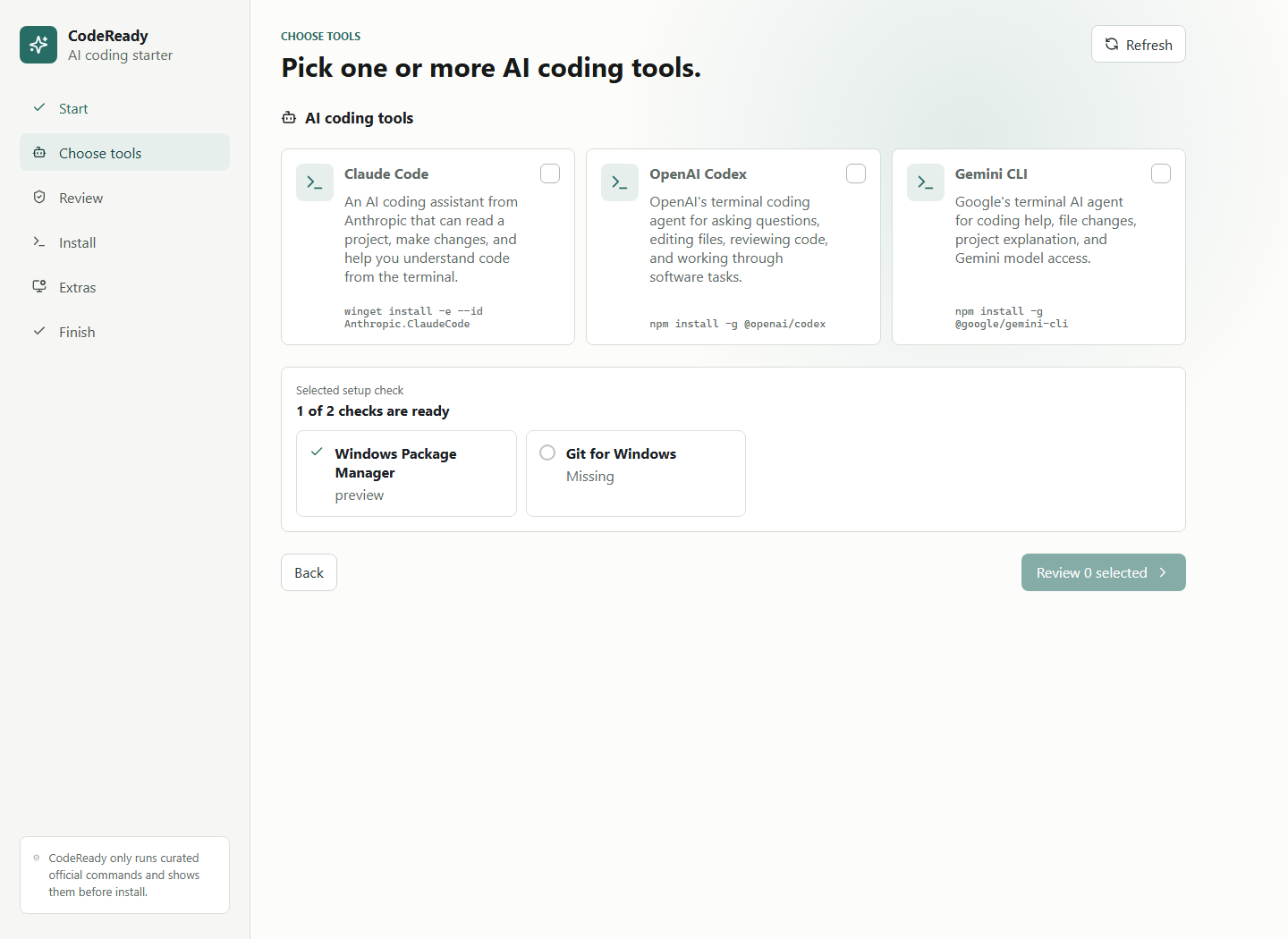
Choose AI coding tools screen

Review before installing

Commands are visible before anything runs.
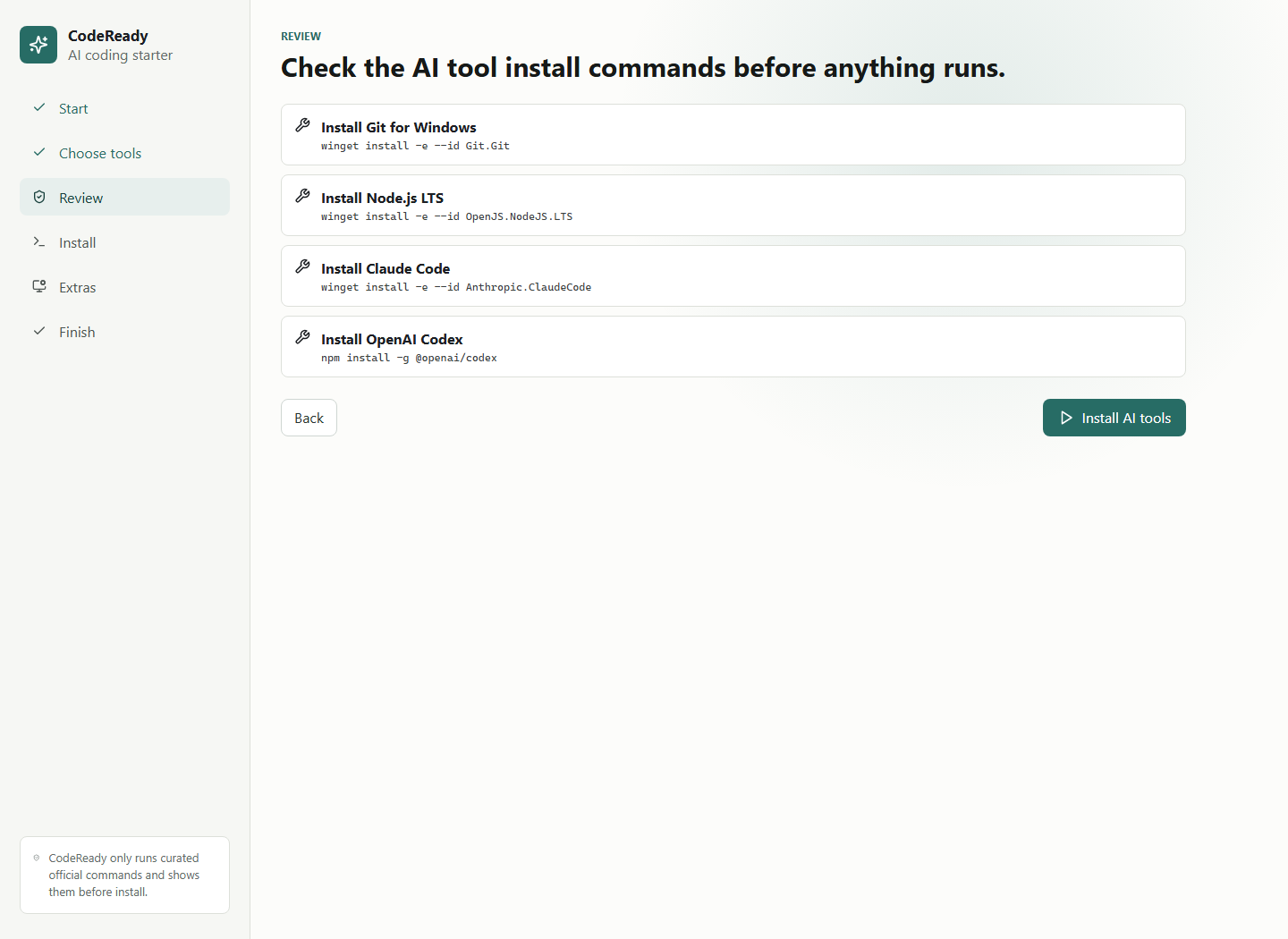
Review install commands screen

Connect and start

After install, CodeReady shows how to sign in and which command to try first.
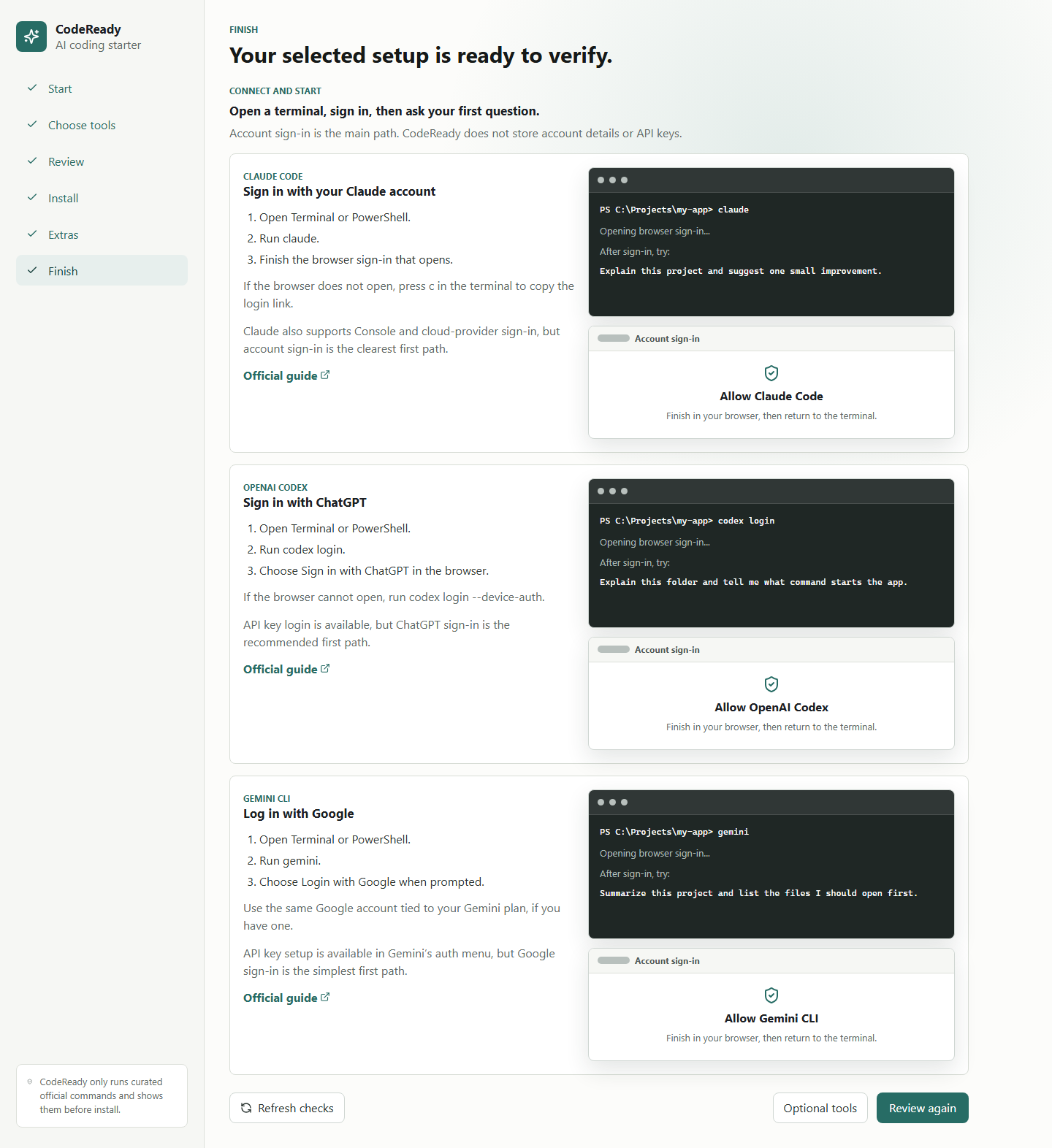
Connect and start screen

Add optional visual tools

VS Code helps review AI changes. GitHub Desktop helps save checkpoints and compare work.
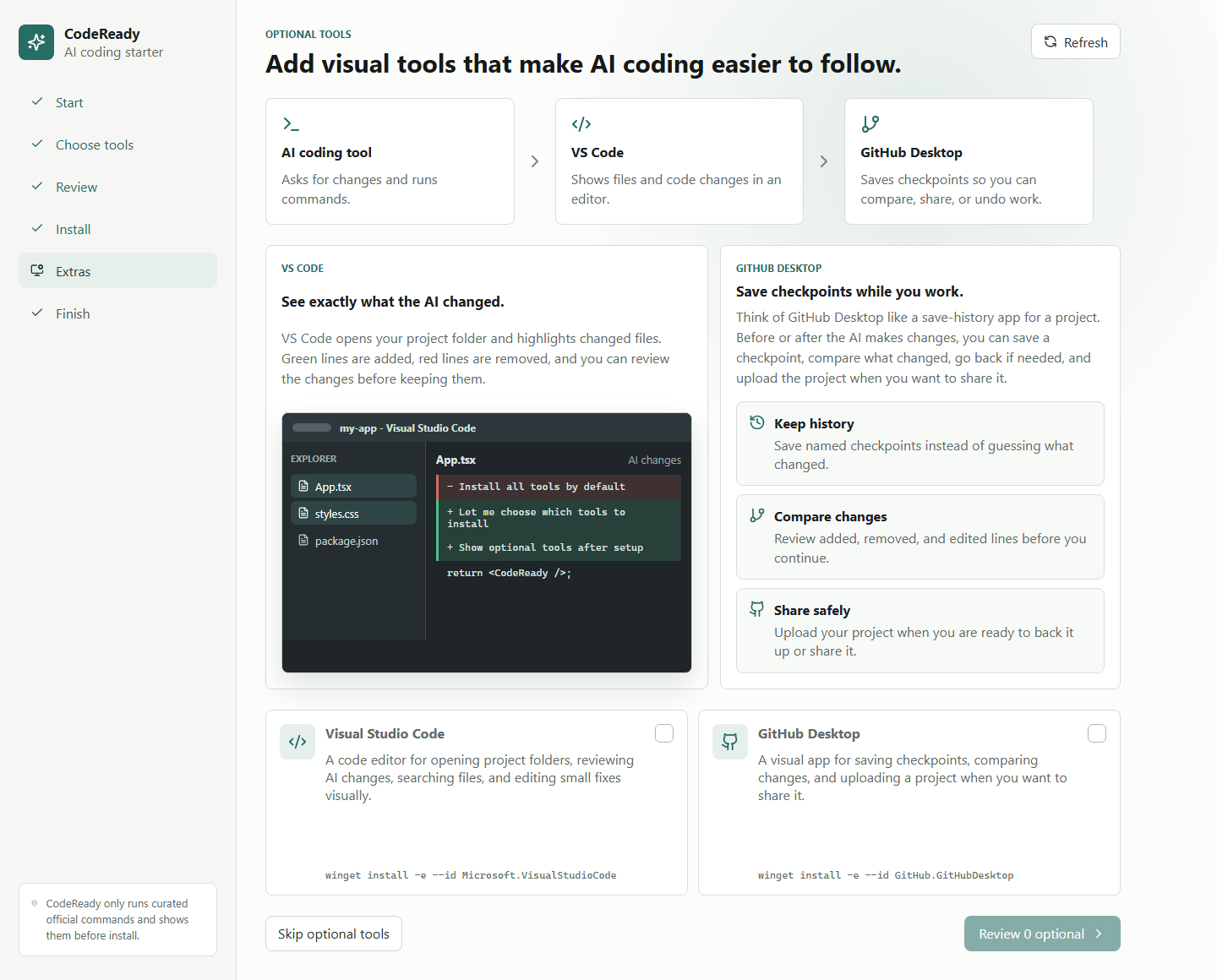
Optional visual tools screen
Download

Get the Windows installer.

Download the latest release from GitHub. If the direct download is not available yet, use the Releases page.